Not too much to ask, is it? Apparently it is. Took ages to set up as I envisaged, so thought I’d share it in case anyone else wants a quick fix.
This works on Mac version 115.32. It should be fine on newer versions, but may not work for you. Either check suggestions at end, run it through AI or just delete the stylesheet file and struggle on with the default upside down UX.
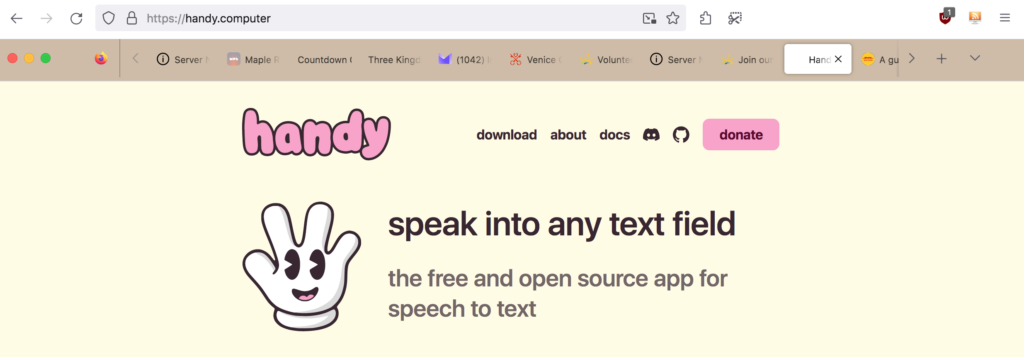
Caveat. To maximise screen space (and overcome the fact I can’t get bookmark text to appear when ALWAYS SHOW is selected), I access bookmarks from the main menu or Firefox top toolbar.
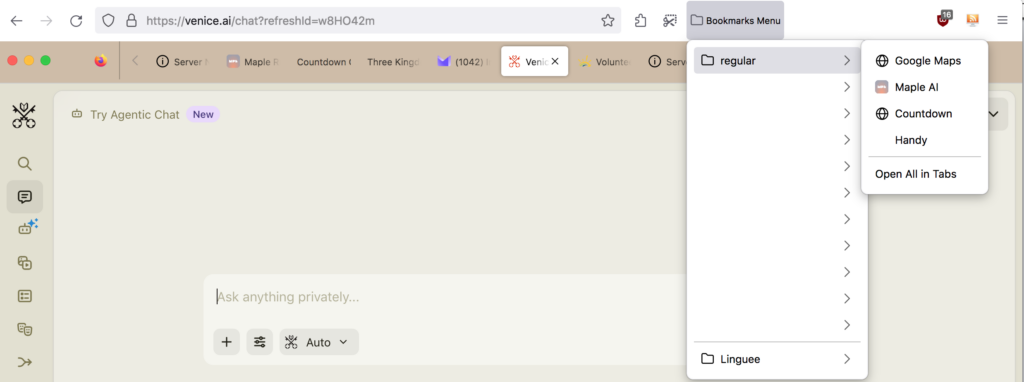
Prime Firefox for changes
- in nav bar type
about:config - agree to potentially ruin everything
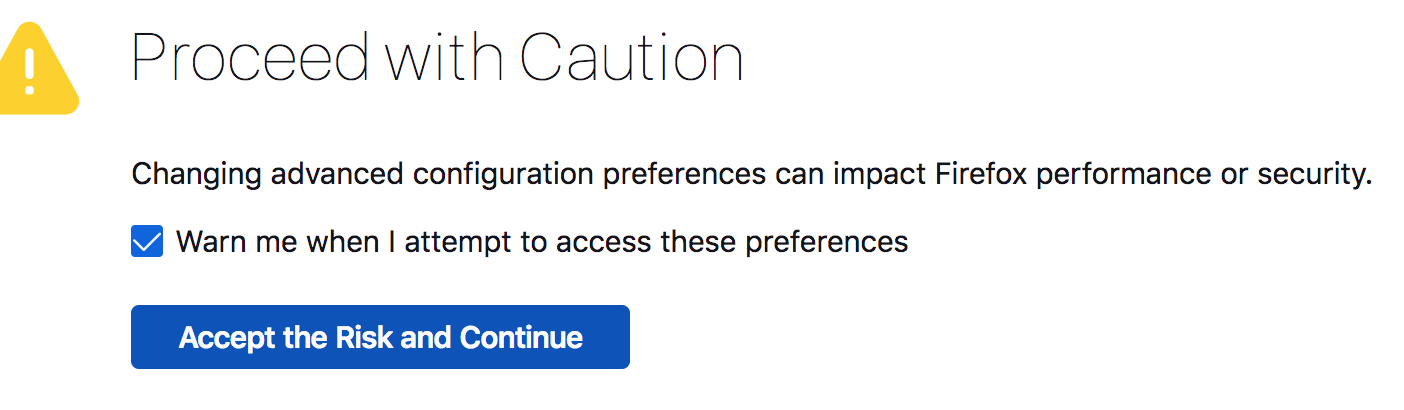
- search
toolkit.legacyUserProfileCustomizations.stylesheets - use the toggle far right to select true to turn the hidden userChrome/userContent system back on.
Set up a userChrome stylesheet
- Go to user/library/Application Support/Firefox/Profiles/default folder/
- Create new folder called chrome (all lowercase)
Alternative route to the default folder
- in nav bar type
about:profiles
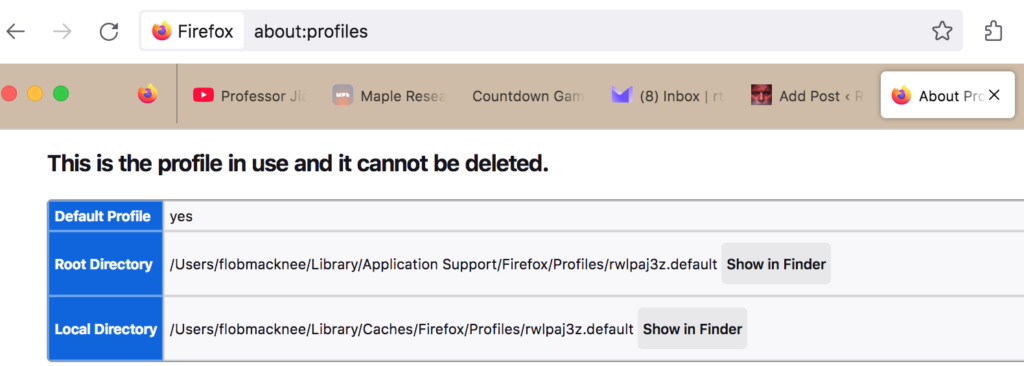
- If you have options, the key is to use the current user .default profile
Prepare userChrome.css stylesheet
- Open a new page in a code editor and name it userChrome.css
- Copy-paste the code below
- Change the
rgb(206,188,167)or#000000colour values as you wish - Save – under Format, file encoding is UTF‑8 without BOM and make sure the syntax is css.
- full path is user/library/Application Support/Firefox/Profiles/default folder/chrome/userChrome.css
- Quit Firefox and restart.
/* ==============================================================
   USERCHROME.CSS – Compact layout with a collapsed Bookmarks toolbar – Tested on Firefox 115.32 (2026‑05‑16) */
   ============================================================== */
/* ==== SIMPLE FIX – force the Bookmarks toolbar to be visible ==== */
#PersonalToolbar,
#PersonalToolbar * {
    display: flex !important;          /* make sure the bar stays in the layout */
    visibility: visible !important;   /* never hide it */
    opacity: 1 !important;            /* fully opaque */
    background: rgb(206,188,167) !important;  /* your brown colour (optional) */
    color: #000000 !important;        /* black label text (change if you want) */
    text-shadow: none !important;     /* remove theme shadows */
}

/* --------------------------------------------------------------
   0️⃣  BASIC STRUCTURE – keep the three rows relative
   -------------------------------------------------------------- */
#navigator-toolbox,
#nav-bar,
#PersonalToolbar {
    position: relative !important;
}

/* Minimum height of the toolbox when the bookmarks bar is hidden:
   nav‑bar (51 px) + tab‑bar (45 px) = 96 px.
   When the bookmarks toolbar appears it will add its own 28 px,
   automatically increasing the toolbox height. */
#navigator-toolbox {
    min-height: 96px !important;   /* no fixed height → it can shrink */
}

/* --------------------------------------------------------------
   1️⃣  NAVIGATION BAR – stays at the very top, white background
   -------------------------------------------------------------- */
#nav-bar {
    margin-top: 0 !important;
    height: 51px !important;
    background: #ffffff !important;
    position: absolute !important;
    top: 0; left: 0; right: 0;
    z-index: 3 !important;
    box-shadow: none !important;
}

/* --------------------------------------------------------------
   2️⃣  TAB BAR – thin coloured strip, under the nav‑bar
   -------------------------------------------------------------- */
#TabsToolbar {
    /* Start just under the navigation bar */
    margin-top: 51px !important;               /* same as nav‑bar height */

    /* Compact height – enough for traffic‑lights, tab titles and “+” */
    min-height: 45px !important;
    height: 45px !important;

    padding-top: 0 !important;
    padding-bottom: 4px !important;           /* room for the “+” button */

    background: rgb(206,188,167) !important;  /* your brown colour */
    background-clip: border-box !important;
    position: relative !important;
    z-index: 1 !important;                     /* under the nav‑bar */
}

/* Make the whole coloured strip clickable (prevents dead space) */
#TabsToolbar::after {
    content: "";
    position: absolute;
    inset: 0;
    pointer-events: none;
}

/* --------------------------------------------------------------
   3️⃣  TABS – tiny top offset so the selected‑tab highlight stays
       inside the coloured area
   -------------------------------------------------------------- */
.tabbrowser-tab {
    margin-top: 2px !important;                /* small offset */
    z-index: 2 !important;                     /* above the coloured background */
}

/* Keep the “new‑tab” (+) button, the view‑icon and the traffic‑lights
   visible */
#TabsToolbar .toolbarbutton-1,
#TabsToolbar .toolbarbutton-1 > .toolbarbutton-icon {
    visibility: visible !important;
    opacity: 1 !important;
}

/* --------------------------------------------------------------
   4️⃣  BOOKMARKS TOOLBAR – same colour, fully opaque,
       collapses to zero when hidden
   -------------------------------------------------------------- */
#PersonalToolbar {
    background: rgb(206,188,167) !important;
    min-height: 28px !important;               /* height **when shown** */
    padding: 0 4px !important;
    margin-top: 0 !important;                  /* sits right under the tab bar */
    position: relative !important;
    z-index: 2 !important;                     /* above the coloured background */
    opacity: 1 !important;                     /* force full opacity */
}

/* Force the label colour to be visible */
#PersonalToolbar .bookmark-item,
#PersonalToolbar .bookmark-item .toolbarbutton-text,
#PersonalToolbar .bookmark-item .toolbarbutton-icon + .toolbarbutton-text {
    color: #000000 !important;        /* black – change to any colour you like */
    text-shadow: none !important;    /* remove any inherited shadow */
    opacity: 1 !important;           /* make sure it isn’t faded */
    visibility: visible !important;
}

/* --------------------------------------------------------------
   5️⃣  FORCE BOOKMARK‑BAR TEXT TO BE VISIBLE (covers older FF)
   -------------------------------------------------------------- */
#PersonalToolbar {
    background-color: rgb(206,188,167) !important;   /* same brown */
    background-image: none !important;
    opacity: 1 !important;
}

/* Text inside each bookmark button – works pre‑ and post‑91 */
#PersonalToolbar .bookmark-item .toolbarbutton-text,
#PersonalToolbar .bookmark-item .toolbarbutton-icon + .toolbarbutton-text,
#PlacesToolbarItems .bookmark-item .toolbarbutton-text,
#PlacesToolbarItems .bookmark-item .toolbarbutton-icon + .toolbarbutton-text {
    color: #000000 !important;          /* black – change to #fff for white */
    text-shadow: none !important;
    opacity: 1 !important;
    visibility: visible !important;
}

/* Ensure the whole button (icon + label) stays fully opaque */
#PersonalToolbar .bookmark-item,
#PlacesToolbarItems .bookmark-item {
    opacity: 1 !important;
    visibility: visible !important;
}

/* ====  COLLAPSED STATE  ==== */
/* Firefox adds collapsed="true" when the toolbar is set to “Never”. */
#PersonalToolbar[collapsed="true"] {
    display: none !important;      /* remove from layout */
    height: 0 !important;
    min-height: 0 !important;
    margin: 0 !important;
    padding: 0 !important;
}

/* Keep bookmark icons visible when the toolbar is shown */
#PersonalToolbar toolbarbutton,
#PersonalToolbar .bookmark-item {
    visibility: visible !important;
    opacity: 1 !important;
}

/* --------------------------------------------------------------
   6️⃣  WHEN THE MENU BAR IS SHOWN – keep the same vertical size
   -------------------------------------------------------------- */
#toolbar-menubar[autohide="false"] ~ #TabsToolbar {
    min-height: 45px !important;   /* same as normal tab‑bar */
}

/* --------------------------------------------------------------
   7️⃣  OPTIONAL – faint tint for the nav‑bar (uncomment if you like)
   -------------------------------------------------------------- */
/* #nav-bar { background: rgba(255,255,255,0.15) !important; } */

/* --------------------------------------------------------------
   8️⃣  CONTEXT‑MENU CLEAN‑UP (unchanged from your original file)
   -------------------------------------------------------------- */
#context-sendimage,
#context-sep-setbackground,
#context-setDesktopBackground,
#context-inspect-a11a {
    display: none !important;
}
/* --------------------------------------------------------------
   Hide the “For quick access …” placeholder when the toolbar is empty
   -------------------------------------------------------------- */
#personal-toolbar-empty-description,
#personal-toolbar-empty-description * {
    display: none !important;   /* or opacity:0 / visibility:hidden */
}
Not too shabby a result. Quit/restart to see changes is very fast.
Finishing touches are to customise the top toolbar. Right-click it and choose shortcuts
Troubleshooting
I didn’t need to do any of these but in case…
nothing changes
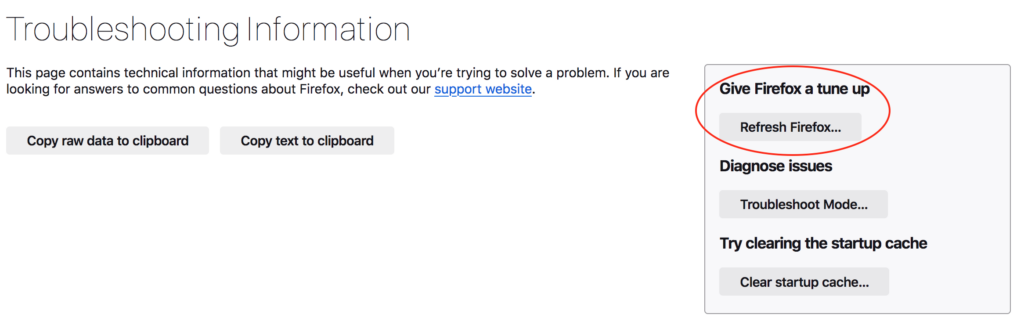
Cache. Type about:support in nav bar and refresh Firefox
Conflicting extensions. Some UI‑theming extensions inject their own CSS, overriding yours. Disable or move those extensions temporarily to see if your stylesheet takes effect.
Firefox updates. IDs like #PersonalToolbar could be renamed. Keep an eye on the Firefox UI Customizer subreddit or GitHub for “userChrome updates” when a new major version ships.
Improve the code
I’m no developer so the code could be bloaty. And there are extra options you might want to check out.
Use CSS variables for colour – Change the colour in one place instead of hunting every rgb(206,188,167) occurrence.
:root {
    --my-bg: rgb(206,188,167);
    --my-fg: #000000;
}
/* then replace */
background: var(--my-bg) !important;
color: var(--my-fg) !important;
Add a fallback for high‑contrast themes – Some users toggle the OS high‑contrast mode and the black text may become invisible on a dark background. A quick media query helps:
@media (prefers-color-scheme: dark) {
    #PersonalToolbar,
    #PersonalToolbar * {
        color: #ffffff !important;
    }
}
Optional “compact” toggle – If you ever want to hide the extra 28 px when the bookmarks bar is empty, you can add:
#PersonalToolbar:empty {
    display: none !important;
}
(there is already a collapsed rule, but this catches the empty case.)
Next I think I will show the Dock and some tricks to keep it unclttered but brimming with goodness.
Leave a Reply